How to try wheels on your car before you buy
Guessing from a product photo on a white background is how people end up with wheels they hate. Here's how to see any wheel on your own car first — free, in your browser.
Why product photos lie
A studio product shot is built to sell the wheel, not to show you how it will look on your car. It is lit to flatter, usually shot on a stand or against a clean white backdrop, and framed at a flattering three-quarter angle you will almost never see in a parking lot. Change any one of those variables and the wheel reads differently.
Three things throw people off most:
- Lighting. A bright machined lip or mirror finish pops against white, then all but disappears against a dark car in flat daylight.
- Angle. A spoke pattern that looks aggressive at eye level can look busy — or plain — from the lower angle you actually see when the wheel is on the ground.
- Scale and context. The photo can't show the wheel against your paint colour, your ride height, or your fender gap. Those are exactly what decide whether a set looks right.
The fix is simple: put the wheel on your actual car before you spend a cent.
Step by step with WheelPeek
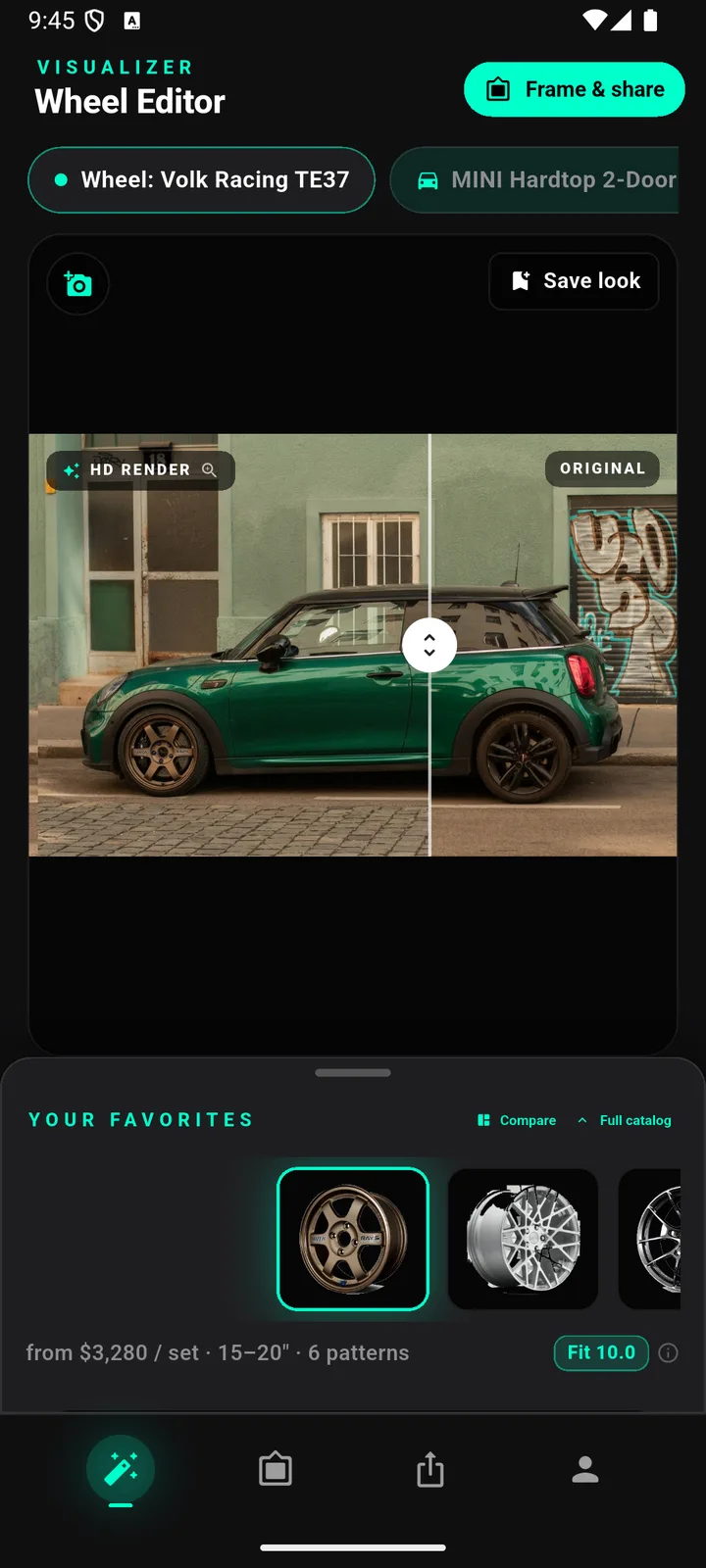
WheelPeek runs free in your browser during the public beta — there's nothing to install and no account for your first five renders. The whole flow takes a couple of minutes:
- Open the beta at wheelpeek.com/app. It loads in the browser — no download, no credit card, no account for your first five renders.
- Snap or import a photo of your car, or generate a demo car to play with first.
- Let the AI read the car. It identifies the make, model, bolt pattern and OEM wheel sizes, and finds the wheels in your photo automatically.
- Browse 1,600+ real wheels from 30 brands. FITS badges flag which ones suit your car's bolt pattern and sizes, so you're not scrolling blind.
- Tap to render. The canvas becomes a photoreal HD image with the chosen wheel fitted — lighting, shadows and reflections included — in about ten seconds.
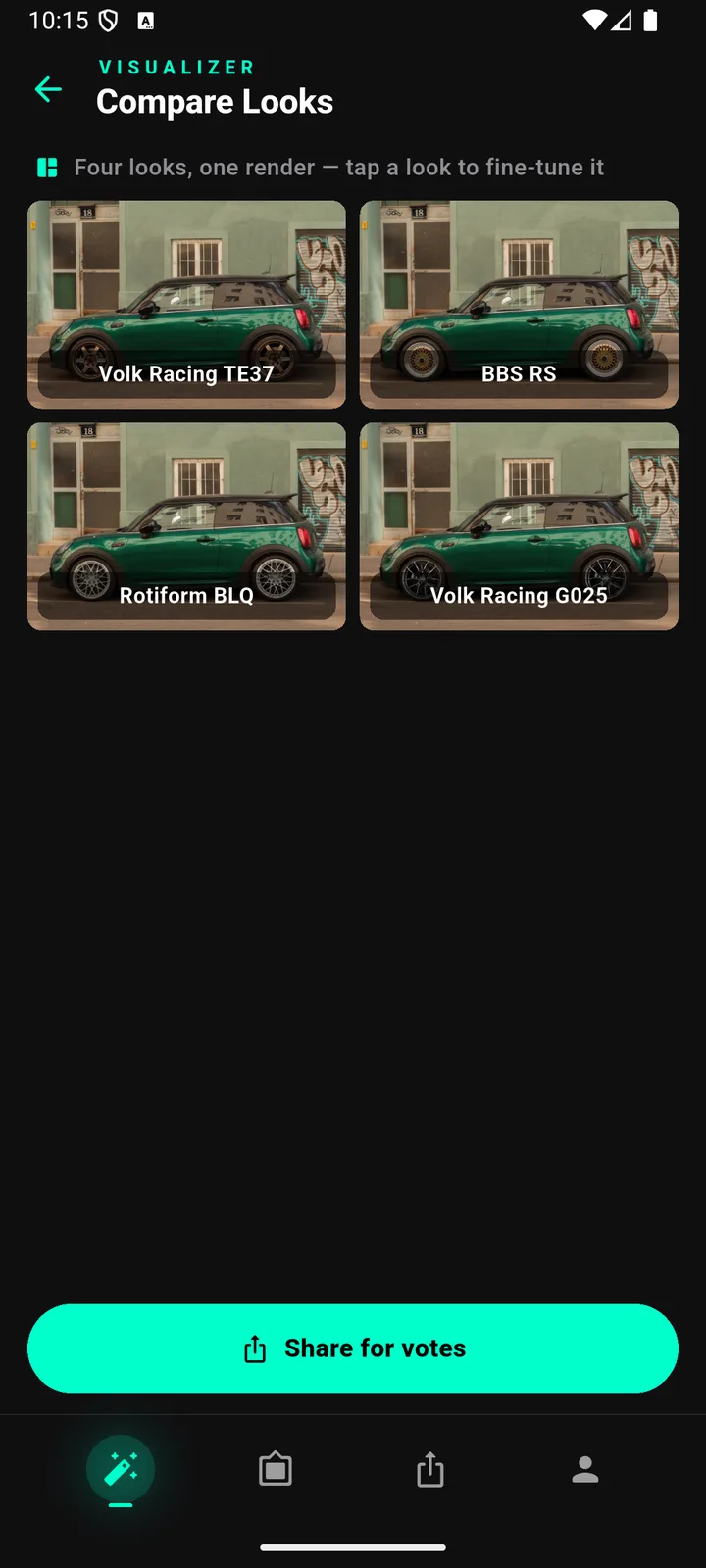
- Compare and decide. Drag the before/after slider, swipe between favourites, then line up a 2×2 or 3×3 sheet — same car, same angle, only the wheels change.
- Share a voting card. One tap composes a numbered card with names and prices and opens your phone's share sheet, so friends reply with a number.
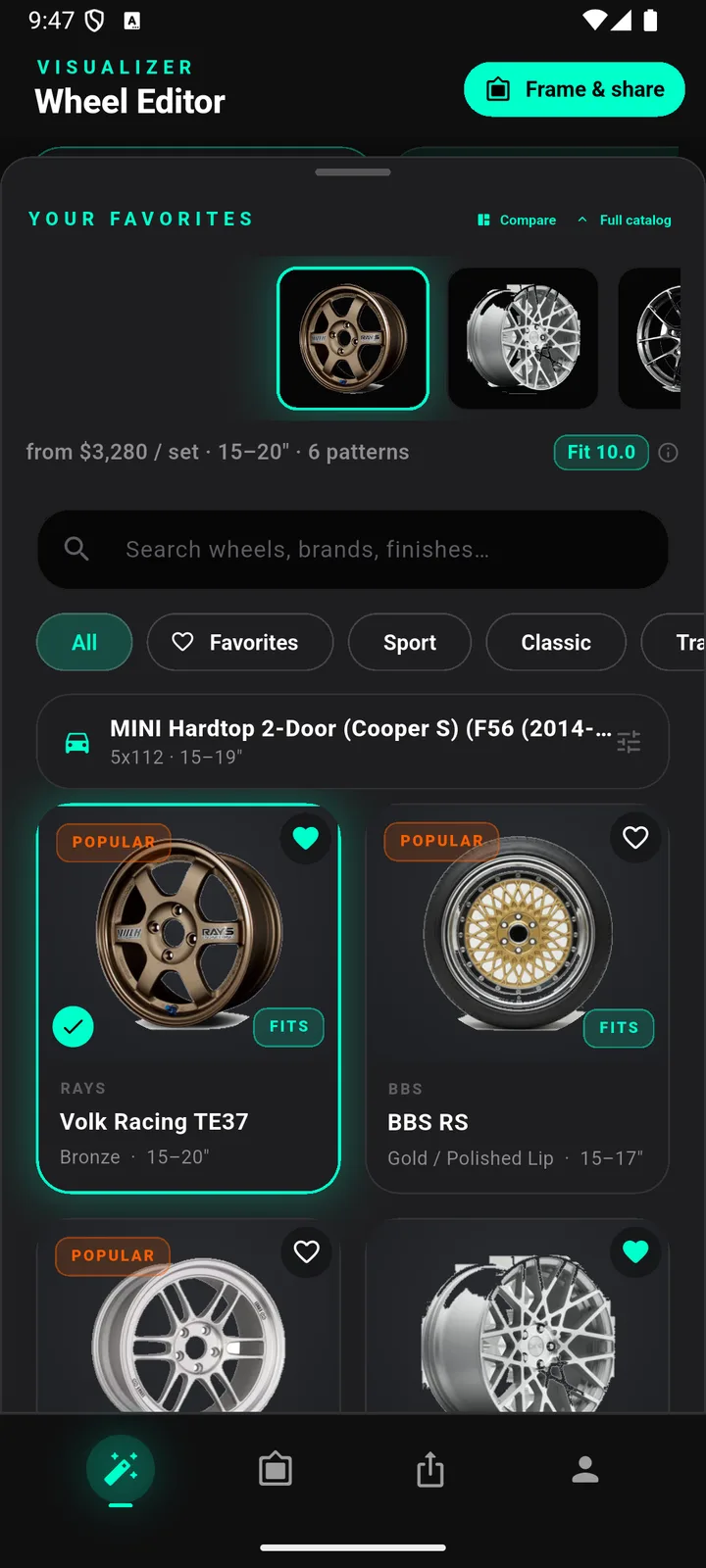
Because each render regenerates the whole photo rather than pasting a picture on top, the wheel actually sits in the scene — the brake calipers show through the spokes, the finish catches the same light as your paint, and the tyre meets the road at the right spot. That's the difference between "I think I like it" and "yes, that's the one".
Want the raw numbers behind the FITS badge? The free wheel offset calculator converts offset and backspacing and shows how far a different offset moves the wheel in or out, and the tire size calculator compares overall diameter and speedometer error before you commit to a size.
Honest note: FITS badges and the Decision Score are estimates from manufacturer specs. Always verify bolt pattern, offset, width and brake clearance with the seller or manufacturer before ordering.
How to take a good car photo
The render is only as good as the photo you feed it. You don't need a camera rig — a modern phone is plenty — but a few habits make a real difference:
- Shoot a clean three-quarter or side angle. A front three-quarter (standing off the front corner) or a straight side profile shows the wheels clearly and looks natural once rendered.
- Get the whole car and all visible wheels in frame. Don't crop the arches; the AI needs to see the wheels and the body lines around them.
- Prefer soft, even light. Daylight or open shade beats harsh noon sun — hard midday shadows hide detail and confuse the finish.
- Hold still. Motion blur and heavy filters throw off detection. A steady, unedited shot renders far cleaner.
- Step back and zoom slightly instead of holding the phone up close. A wide-angle lens right next to the car bends the bodywork; a couple of steps back keeps proportions honest.
If a render ever looks off, it's almost always the input photo. Re-shoot with better light and a cleaner angle and try again — it's free.
Overlay tools vs true renders
Not every "wheel visualizer" does the same thing. It's worth knowing which kind you're using:
- Sticker-style overlays paste a cut-out wheel PNG over your photo and scale it to fit. They're fast, but the pasted wheel doesn't share your car's lighting, perspective or reflections, and it can't show brake hardware behind the spokes — so it tends to look stuck-on.
- True renders regenerate the photo itself, so the new wheel is lit by the same scene, reflects the same surroundings, and shows the calipers through the spokes. That's what WheelPeek does.
If you want the full picture of how this works under the hood — and how to spot a bad visualization — read how AI wheel visualizers actually work.
FAQ
Is it really free?
Yes. Your first five renders need no account at all (they carry a small WheelPeek mark). Sign in with Google — no credit card — for 100 free renders during the beta, without the mark. Optional paid plans for heavy use will come after the beta; trying WheelPeek stays free.
Does it work on any car?
It identifies most cars from a single photo — make, model, bolt pattern and OEM wheel sizes — and auto-detects the wheels with AI vision. Modified cars can set a custom fitment override so the scoring matches the build.
How accurate is the render?
The editor canvas is a true render: a photoreal HD image replaces your photo in place, typically in about ten seconds. Every render is quality-checked against the real product photo, and mismatches are auto-rejected and re-rendered. Renders are illustrative and may differ from the real product.
Can I compare multiple wheels?
Yes. Heart your favourites, then line them up on one sheet — 2×2 for a shortlist or 3×3 for a full sweep, same car and same angle. One tap turns the shortlist into a numbered voting card you can share.